Prerequisites
What you'll need.
A Mac with Apple Silicon, Microsoft 365 Word, and about ten minutes.
- A Mac with Apple Silicon (M1, M2, M3, or M4). Apple menu → About This Mac — look for "Chip" starting with "Apple". Any Mac from 2020 onward qualifies.
- Microsoft 365 Word for Mac — the desktop app, not Word on the web.
- About 10 minutes.
- About 300 MB of free space, plus a ~260 MB model download on first run.
Step 01
Download & open the installer.
Browser download or a one-line shortcut — skip the macOS warning entirely.
Try the browser path first. If the macOS security warning feels fiddly, jump to the one-liner below.
The normal way (browser download)
- / 01
-
/ 02
Browser asks for username and password — use the beta password from your welcome email (not your Mac password). Username:
greenbook. -
/ 03
After the download, open Downloads and double-click
Greenbook-Companion.pkg.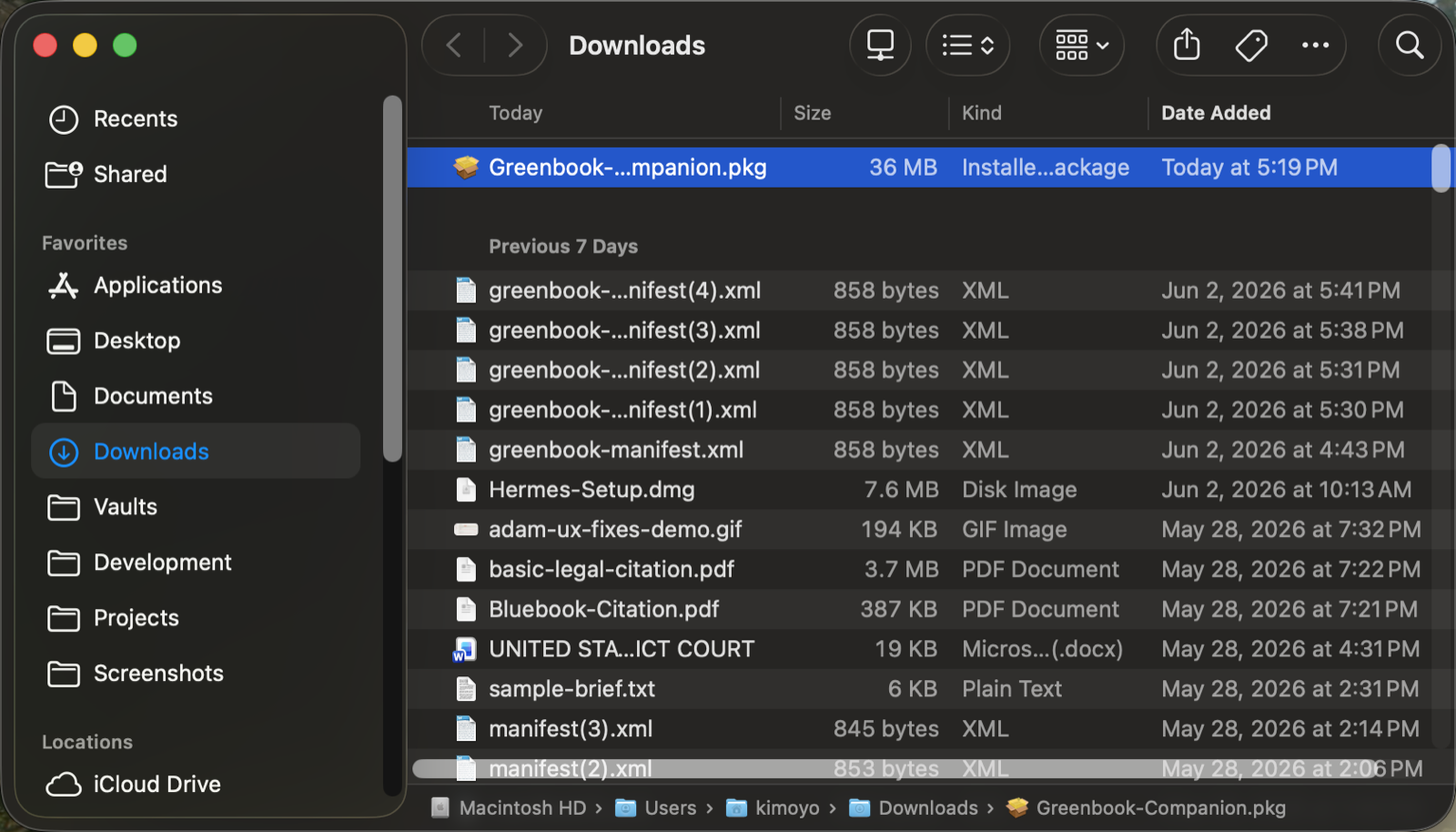
Downloads folder — Greenbook-Companion.pkg -
/ 04
macOS shows: "cannot be opened because it is from an unidentified developer." Click OK — the installer won't open yet. This is expected.
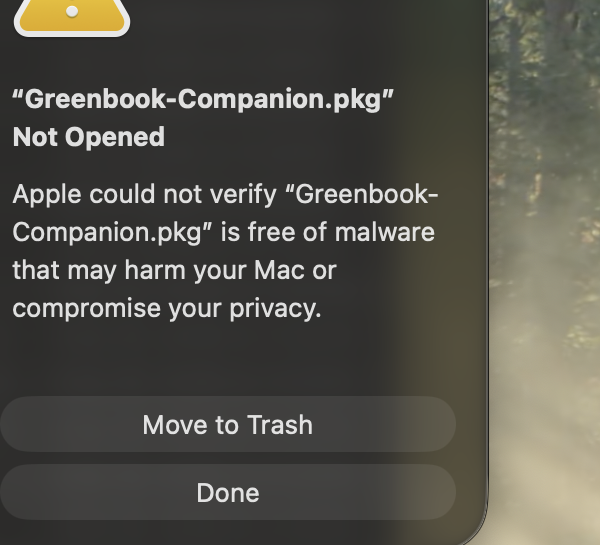
macOS "unidentified developer" warning -
/ 05
Open Apple menu → System Settings → Privacy & Security. In the Security section, click Open Anyway, confirm, and enter your Mac password.
-
/ 06
The installer opens. Continue to Step 2.
This warning is expected — you're safe.
"Unsigned" means Apple hasn't stamped the file yet. Everything GreenBook does runs locally on your Mac.
On recent macOS, right-clicking "Open" no longer bypasses Gatekeeper. Use Open Anyway in System Settings → Privacy & Security.
The shortcut — one line, no warning
-
/ 01
Open Terminal (⌘ Space →
Terminal→ Return). -
/ 02
Paste this and press Return — replace
BETA_PASSWORD_HEREwith the password from your welcome email:curl -u greenbook:BETA_PASSWORD_HERE -L -o ~/Downloads/Greenbook-Companion.pkg https://greenbook-download.cloudflare-jynir.workers.dev/ && open ~/Downloads/Greenbook-Companion.pkg -
/ 03
The installer downloads and opens automatically. Continue to Step 2.
Why does this skip the warning? Browser downloads get a hidden "quarantine" flag that triggers Gatekeeper. Terminal downloads don't carry that flag — same file, no extra step.
Optional — verify the download.
curl -u greenbook:BETA_PASSWORD_HERE -s https://greenbook-download.cloudflare-jynir.workers.dev/sha256sums
shasum -a 256 ~/Downloads/Greenbook-Companion.pkg
If the Greenbook-Companion.pkg hash in the first output matches the second, the file is exactly what we published.
Step 02
Run the installer.
Click through the wizard. One Mac password prompt — that's it.
-
/ 01
In the installer, click Continue through the welcome screens, then click Install.
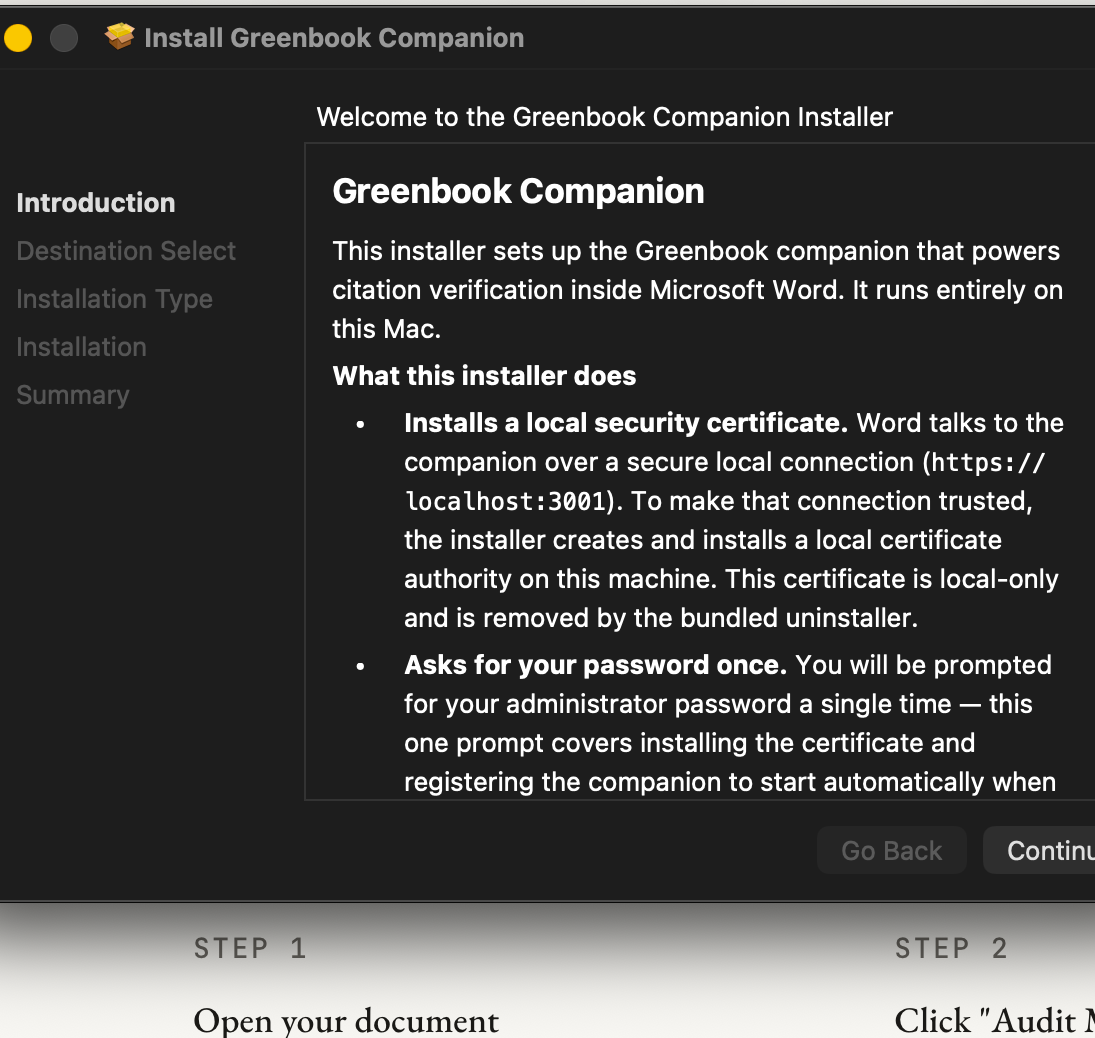
Installer welcome pane -
/ 02
macOS asks for your Mac password, once. Type it and click Install Software.
What is this password for?
GreenBook installs a local security certificate so Word can talk to the companion over a secure local connection. Nothing is uploaded anywhere.
-
/ 03
When you see "The installation was successful", click Close.
Step 03
Open Word and find GreenBook.
The add-in is already installed — nothing to upload.
-
/ 01
Open Microsoft Word. If Word was open during install, quit and reopen it.
-
/ 02
Open any document or create a blank one.
-
/ 03
Find the GreenBook button on the Home ribbon and click it.

Home ribbon — GreenBook button -
/ 04
The GreenBook panel opens on the right. Continue to Step 4.
If GreenBook isn't showing (manual upload)
If you don't see the button after restarting Word:
- / 01In Word, go to Insert → Add-ins → My Add-ins → … → Upload My Add-in.
- / 02Save greenbook-word-addin.pages.dev/manifest.xml as
manifest.xmland select it. - / 03The GreenBook panel opens.
School-managed Mac: "Upload My Add-in" greyed out means your institution restricts add-ins. Contact your school IT, or use a personal Mac.
Step 04
Connect & first-time setup.
Choose your sources folder. One-time model download. Then you're running.
-
/ 01
Look for Connected in the GreenBook panel — this confirms Word found the companion running on your Mac.
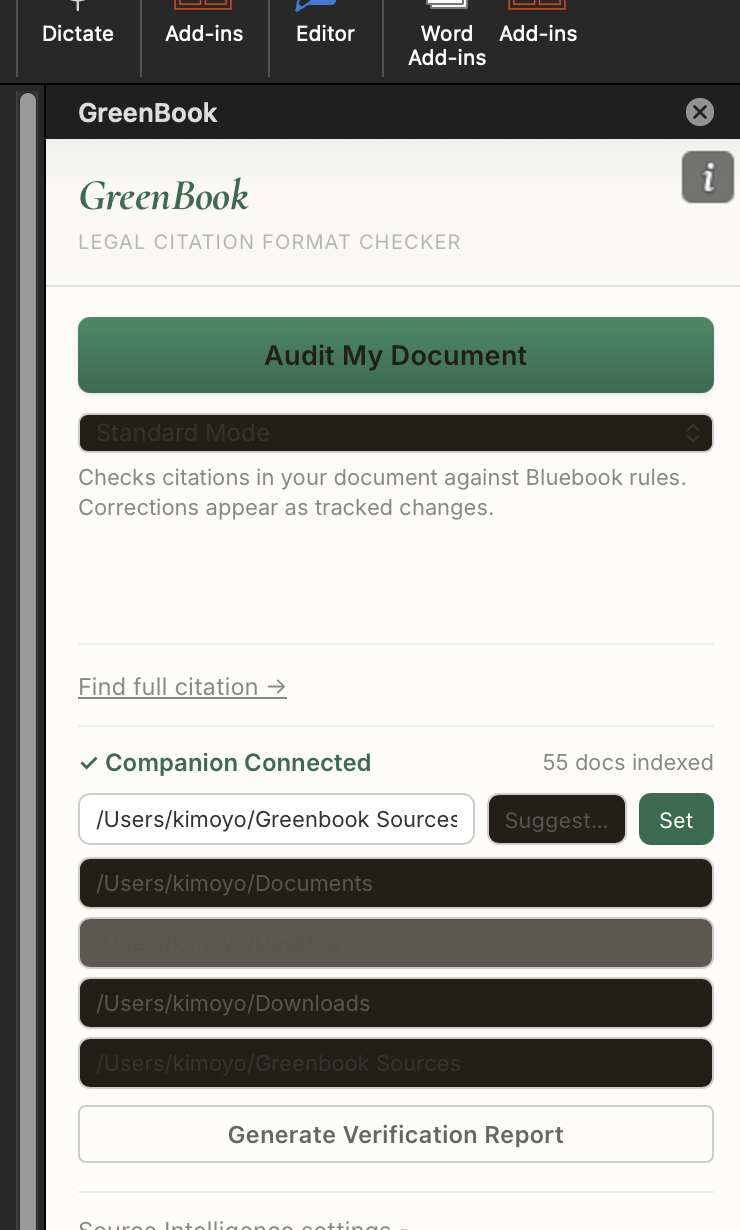
GreenBook panel — Connected -
/ 02
Choose your sources folder — the documents you want GreenBook to check citations against.
Tip: Create the folder directly in your home folder (
/Users/yourname/GreenBook Sources) rather than Documents or Desktop — macOS privacy settings can silently block background apps from reading those locations. -
/ 03
On first run, GreenBook downloads its AI models (~260 MB). A progress bar appears in the panel.
One-time download — grab a coffee. After it completes once, GreenBook starts instantly every time.
You're ready to check citations.
Step 05
Uninstalling.
One command removes everything. Your data folder is only deleted with your permission.
To remove GreenBook completely:
- / 01Open Terminal (⌘ Space →
Terminal→ Return). -
/ 02
Paste and press Return:
sudo "/Library/Application Support/Greenbook/bin/uninstall-greenbook.sh" - / 03Enter your Mac password if prompted.
This removes the companion, the local certificate, the auto-start entry, and the Word add-in. It will ask before deleting your data folder (~/.greenbook).
Help
Troubleshooting.
Most issues resolve in one step. Stuck? Ping us directly.
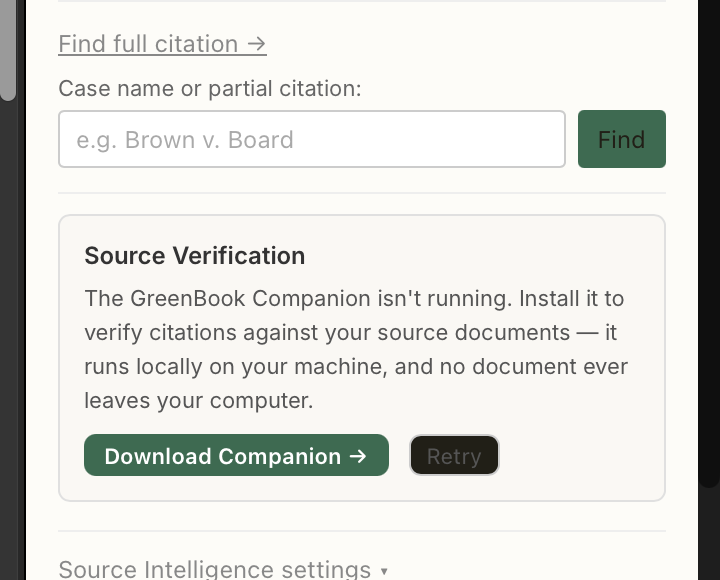
The panel says "companion not running"
Word can't reach the GreenBook companion on your Mac.
- Click Download / Retry in the panel.
- If still no luck, restart your Mac and reopen Word — the companion starts automatically at login.
Where the logs are
~/Library/Logs/Greenbook/In Finder: Go → Go to Folder…, paste that path.
Contact us
Post in the beta Discord, or email hello@greenbook.legal. Include which step you're on and a screenshot if possible.
Context
Why unsigned?
Apple notarization ships before public launch. Here's the full picture.
This is a beta. Notarization ships before public release.
- "Unsigned" means Apple hasn't put its stamp on the file yet — it does not mean the software is unsafe.
- Everything GreenBook does runs locally on your Mac. No data leaves your machine.
- The Open Anyway flow (or the one-line Terminal shortcut) is the standard path for trusted beta software that isn't notarized yet.
- Apple code-signing and notarization are on the roadmap before public launch.
Thank you for helping us test. Your feedback shapes what ships next.